

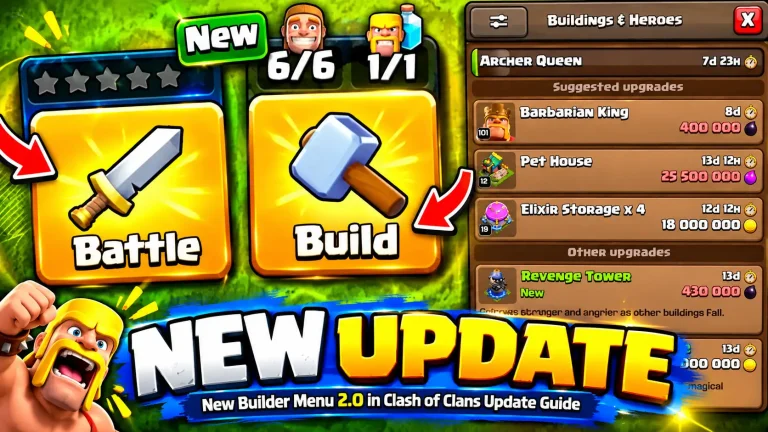
The New Builder Menu 2.0 in Clash of Clans is a full revamp of the main village interface. The update reorganizes the
screen into a Battle section on the left and a Build section on the right, moves existing buttons instead of removing
them, and introduces a modern Builder Menu with suggested upgrades, filters, and snap-to-building functionality.
Quick Answer: What Is the New Builder Menu 2.0?
Builder Menu 2.0 is the centerpiece of the upcoming Clash of Clans update. It replaces the old builder list at the
top of the village with a dedicated build hub that shows suggested upgrades, new buildings pinned at the top, heroes,
laboratory research, Blacksmith equipment, and Pet House upgrades in one place. Tapping any item snaps the camera to
that building and opens the upgrade screen directly. The update also redesigns the overall UI for clarity and future
expansion.
Major UI Changes in This Clash of Clans Update
Supercell has confirmed that nothing has been removed from the interface.
All buttons have been moved to more logical positions. The goal is to make navigation clearer for new, returning, and
veteran players.
Battle Section on the Left, Build Section on the Right
The screen is now split into two clear areas:
- Battle Section (left side): Everything needed to attack lives here.
- Build Section (right side): Everything needed to build, upgrade, and manage your village lives
here.
Battle Menu and Battle Logs
When you open the Battle menu, you can view battle logs and edit your army from one place. The standalone battle log
icon from the main screen has been removed because it was duplicated. Inside the Battle menu you can:
- Check ranked and regular battle logs
- View the leaderboard for your ranked layout
- Edit your army and army recipes
- See star bonus progression above the Battle button
The Edit Army button that used to sit above the Battle button now lives inside the Battle menu. Before any attack,
the game still prompts you to confirm your army, so you can enter battle ready.
New Visual Indicators
The Battle button now gives visual clues:
- Sword icon: Appears when a revenge attack is available and guides you to the attack log.
- Eyeball icon: Appears when someone is attacking you live, letting you watch the replay directly.
These indicators help players quickly find active events without searching the UI.
Gold Pass and Event Tray
The Gold Pass or Season Challenges button keeps its dedicated spot and opens the same menu as before. Next to it is
the new Event Tray.
- The Events tab is always pinned at the top of the tray
- You can open the tray to see News and other temporary events
- Any new item with a notification stays pinned to the top until you view it
- When you open the game, the tray opens fully for a few seconds and then slides closed. If you manually open it,
it stays open until you close it
Clan War Button Moved to Clan Chat
The Clan War button is no longer on the main HUD. War tracking has moved inside Clan Chat. Clan leaders can sign up
for wars from there, and there is a small button to hide the war tracker if you do not want to see it every time you
open chat.
When you are in an active Clan War, the dedicated war button returns above the Battle button. When you are not in a
war, the button stays hidden. This change helps players who are not in a clan or not in a war keep a cleaner screen.
Clan War Leagues works the same way.
Profile and Settings Merger
The Profile menu remains largely the same, but Settings has been merged into it. Inside Profile you now find tabs for
Social, Inbox, My Clan, and other options. This adds one extra click when switching accounts. Supercell has noted
this feedback in their blog post and is looking to improve the flow.
Other profile improvements include:
- Town Hall level displayed next to your name and clan, not just experience level
- Buttons with a darker background for better readability
Resources, Shield, and Shop
On the right side of the screen, resources and gems stay in place, but the shield has moved to the right side as
well. According to the Clash of Clans team, the shield protects your resources, so it now sits with them. This also
clears the top area where the old Builder Menu and Lab Menu were.
The count for available Builders and Researchers now sits next to the Build button. The Shop has its own dedicated
area where you build all buildings and defenses, and spend gems, CWL Medals, and Sparky Stones. Offers and the
creator code entry for supporting content creators also live in the Shop. You can still support creators through the
Supercell Store for extra bonuses.
Inside the Builder Menu 2.0: How It Works
The new Builder Menu is the biggest functional upgrade in this Clash of Clans update. When you first log in after the
update, the Villager introduces it with a short rundown.
Layout and Navigation
Opening the Build area shows the Layout Editor button. The design philosophy is simple: the Battle area is where you
set your layout, the Build area is where you design or copy it from a link.
Inside the Builder Menu you will see:
- Suggested Upgrades at the top: Same concept as the old top bar, now better organized
- New buildings pinned: Any new buildings are pinned near the top above other upgrades
- Full list of upgrades: Everything available to upgrade is listed below
- Bottom tabs: Switch between Builders, Lab, Blacksmith, and Pet House. The tabs clearly show how
many builders you have available
Snap-to-Building and Quick Upgrades
The most useful change is snap navigation. When you tap an upgrade like Elixir Storage or Hero Hall, the camera snaps
to that building in your village and automatically opens the upgrade confirmation screen.
If you tap anywhere in the village, the Builder Menu slides away and you return to normal interaction. This makes it
much faster to find buildings.
Heroes, Lab, Blacksmith, and Pet House
Heroes: If your Hero Hall needs to be upgraded first, heroes appear at the bottom with a note and a
button that takes you directly to the Hero Hall upgrade. Once upgraded, you can tap any hero like the Archer Queen or
Barbarian King to start the upgrade inside the Hero Hall. Upgrade animations play at the top of the menu.
Laboratory: You can still enter the Laboratory building manually. The Builder Menu also lets you
upgrade troops, spells, and siege machines from inside the menu. The camera snaps to the Lab when you select it. If
you lack resources, it shows that clearly, just like the live game.
Blacksmith: The Blacksmith tab snaps to the Blacksmith in your village and shows how much ore you
have for equipment upgrades. You can see which equipment is equipped, which is not unlocked, and what level
requirement you need. If an item needs Blacksmith level 10, it tells you and offers a direct upgrade button.
Pet House: Works the same way. It shows which pets still have upgrades remaining and lets you
upgrade directly from the menu or by entering the Pet House.
Filters and Sorting
Filters are a major improvement. You can filter by resource type or upgrade type and sort by cost. For example, you
can filter for Dark Elixir spells and sort by cheapest first. When you close the Builder Menu, it resets to the
default Builder view with no filters. If you had a filter active in the Lab tab, it remains until you clear it.
Magic Items and Temporary Storage
There is now a dedicated button for Magic Items, so you no longer need to go through the Town Hall. Temporary storage
for Magic Snacks also has its own button. You can still access these through the Town Hall and other buildings using
the old routes, and those options are expected to remain.
Maxed Village Screen
When all upgrades are complete, the Builder Menu shows an All Upgrades Complete screen. This preserves the popular
screenshot moment from the old UI where players tapped the builder icon to see the completion message.
Builder Base and Clan Capital
The UI revamp extends beyond the Home Village.
- Builder Base: Gets the same UI refresh. The Builder Menu applies here too, but with only two
tabs: Builders and Star Lab. - Clan Capital: Receives a button style refresh, but the overall layout stays the same because the
Clan Capital was designed differently from the start.
Why Supercell Is Revamping the UI
The old interface was built for a much smaller game. Over time, hero equipment, pets, magic items, events, and the
Clan Capital were all added to the original UI. The team decided the interface needed a clean foundation to support
future features.
According to the blog post, this is the first iteration and not the final state. Future plans mentioned include more
customization, scaling options, quick actions, and more control over your own layout. Other community requests under
consideration are easier profile switching and better ways to organize upgrades, such as a favorites list pinned to
the top instead of only suggested upgrades. Players have also suggested a visual indicator like a flame behind the
builder count when fully maxed.
Tips to Adapt to the New Builder Menu
- Give it one week. Supercell noted that muscle memory usually takes about a week to adjust to a new interface.
- Use the snap feature to learn building locations instead of scrolling manually.
- Use filters to plan upgrades by resource. For example, filter by cheapest Dark Elixir upgrades when you are low
on resources. - Check the Event Tray first when you log in, since notifications are pinned there.
- Find war sign-ups inside Clan Chat if you are a leader or co-leader.
- Access Magic Items directly from the dedicated button to save time.
For more guides on the latest changes, check out the Clash of Clans updates and
strategy guides section.
Frequently Asked Questions
When will the New Builder Menu 2.0 be released?
Supercell has said the revamp will be live in the game soon. It is not a sneak peek for the next day, but a heads-up
so players are not surprised when buttons are in new positions.
Was anything removed from the Clash of Clans UI?
No. The Clash of Clans team confirmed that no buttons were removed. All features were moved to new positions to make
the interface clearer.
Where is the Edit Army button now?
The Edit Army button is now inside the Battle menu. Tap Battle, then edit your army and recipes from there.
Where do I find Clan Wars after the update?
Clan Wars can be tracked and joined from Clan Chat. A dedicated war button appears above the Battle button only when
you are in an active war. Clan War Leagues works the same way.
Can I still upgrade through buildings directly?
Yes. You can still go through the Town Hall, Laboratory, Blacksmith, and Pet House manually. The Builder Menu 2.0 is
an additional, faster way to manage all upgrades.
Does the new Builder Menu show builder and research timers?
Yes. Active upgrades are shown at the top of the menu with timers, progress, and quick access to the Builder’s
Apprentice.
Conclusion
The New Builder Menu 2.0 in Clash of Clans is a thoughtful rework of a UI that had grown crowded over the years. By
grouping attack-related features on the left and build-related features on the right, adding snap-to-building,
filters, and clear visual indicators for revenge and live attacks, the update makes the game easier to navigate
without losing any functionality. As a foundation for future customization and quick actions, this revamp should make
managing upgrades and battles faster once players adjust to the new layout.